

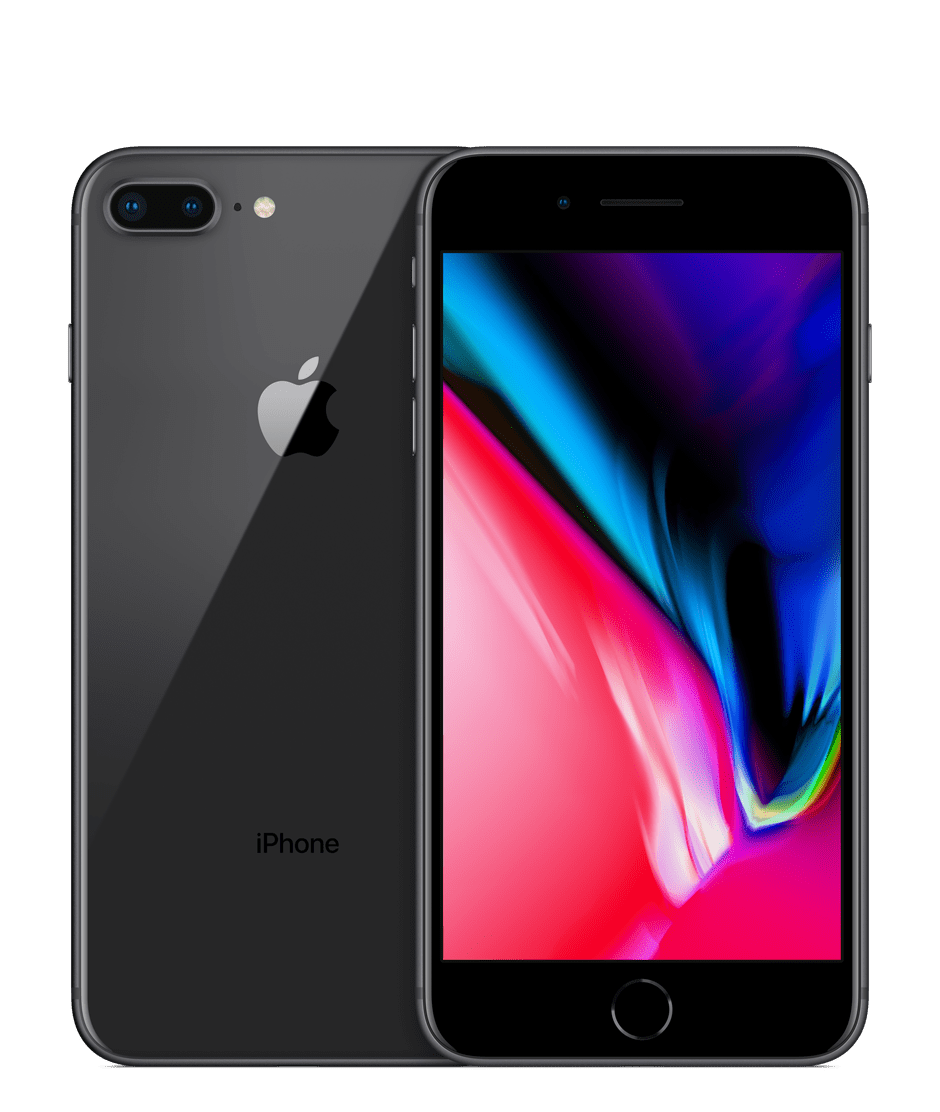

For every iPhone user, battery life is one of the biggest concerns. I mean let’s face it, once your iPhone’s battery is low, you become dangerously close to losing access to all its features including email, phone calls, texts, and GPS. At best, a dead battery is annoying, as it leaves you without anything to watch or read with during an SGR train ride or ending a conversation via social media, SMS or phone call, abruptly.
In the worst case scenario and Godforbid you don’t have access to a power bank, a drained battery can leave you stranded, unable to call for a ride home if you are a Taxify (sorry Bolt) or Uber user, or even call for help in times of danger.
While Apple says the batteries on newer iPhones should last as long as 24 hours with moderate usage during the day, streaming videos, making calls, listening to music, and other kinds of active use, result in a much faster battery drain.
PS: My iPhone 7 Plus while not so new ?(shout out to 8, 8Plus, X, Xr, Xs and Xs Max users), manages to last the whole day on a single charge.
Below, are some ways to save iPhone battery life.
Checking Which Apps Are Draining Your Battery

You can from time to time, check which apps take the most from your battery, by going to the Battery tab under Settings. The percent of power that each app uses, will be displayed.
This can also help you discover the apps that are the most power thirsty. You can then close out of the apps that are draining the most battery rather than leaving them open.
Alternatively, you can use them less often.
Turning Down Your Screen Brightness

Unless you are outdoors, using your phone on a very sunny day, there is absolutely no reason for the screen to be at full brightness. At least in my good intentioned opinion.
Swiping up from the very bottom of the screen to bring up the Control Center, would show you the option to lower screen brightness to the lowest point at which you can still see whatever activity you’re doing on the phone.
You can try right now, I guarantee you will still be able to read this article clearly.
Surprised you there didn’t I ?.
Turning Off WiFi or Cell Service Until You Need It
If you are on the move, turning off your phone’s WiFi service, will stop it from constantly searching for a signal.
Also if you are at at home, at work, or any other place where you can make calls via WiFi, turning off the cell service so it does not constantly search for a connection.

You can even just (if the need arises) go into Airplane Mode (from the Control Center or Settings) and shut down both to save even more battery power.
Turn off Location Services for apps

Go into your iPhone’s Settings, then scroll up until you find the Privacy tab. Tap on it, and then hit Location Services. Once there, you will be able to customize which apps use location based tracking.
The more you limit or set to Never entirely, the less power those apps will drain when in use.
You can also put it off entirely, until you need it for say booking a ride.
Use Low Power Mode

Once your iPhone suggests that you switch to Low Power Mode, you definitely should do it. Otherwise, you would be at almost 1% battery level in less than half an hour. Just kidding.
… Or am I? *wink
If you are not actively using your phone, or if you are doing something less demanding, like reading or writing a long email, you can switch into Low Power Mode by yourself, via the Battery tab in Settings, just so you can save power by limiting background activity and mail fetching.
Personally, my iPhone is always on Low Power Mode. Even when it is full.
